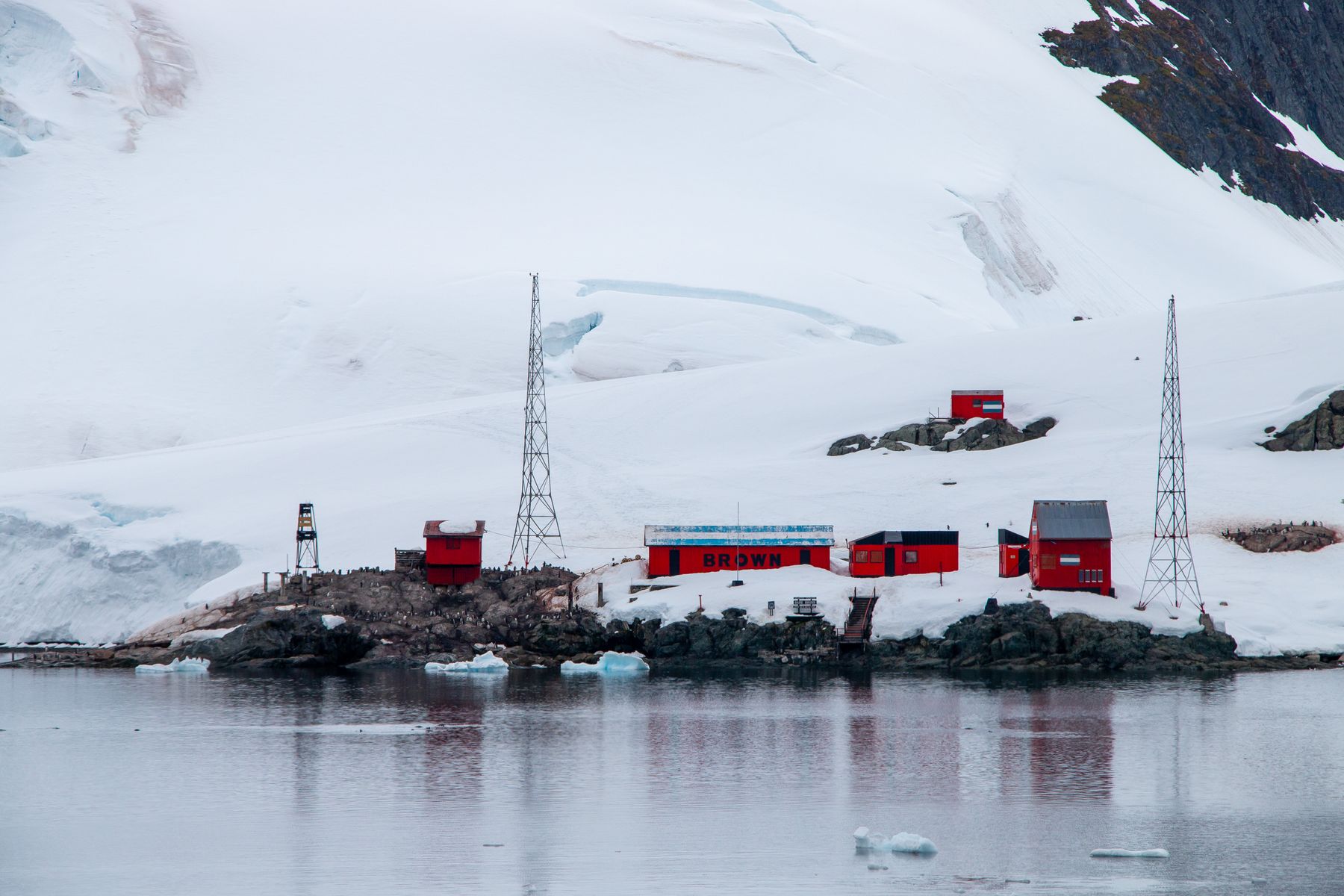
Antarctica eSIM Basics
Antarctica eSIMs are mobile plans that you activate digitally on your phone before you reach the region where normal cellular coverage fades. On many polar itineraries, you start with roaming on terrestrial networks, then move into areas where only satellite communications work, and finally you may have long stretches with no mobile service at all. That pattern matters for health-related tasks like messaging family, receiving travel alerts, or using telehealth apps that require a working connection.
An eSIM is a programmable SIM profile stored on your device. After activation, your phone uses the carrier’s roaming agreements when it can find a compatible network. When you lose coverage, the eSIM profile stays installed, but the phone cannot attach to a network until you return to an area with service.
For practical examples, think about the first day after boarding: you may have service in port and along the coast, then lose it as the ship moves farther from land. If you plan to use a symptom tracker or send location updates, you need a plan for the “no signal” period, not just the “first hours” period.
Common Failure Points
People often assume an eSIM “covers Antarctica” in the same way a plan covers a city. In reality, most consumer mobile plans rely on roaming partners and terrestrial towers, which do not exist across most of the continent. The result is a plan that works during parts of the route and then stops.
Another frequent mistake is testing only once, right after activation. Network attachment can fail due to device settings, a wrong roaming toggle, or a carrier profile that needs a reboot. I’ve seen phones show “Connected” while data fails because the APN settings are missing or the device is stuck on a cached network selection—this is the kind of issue that shows up when you’re already far from help.
Dependencies also trip people up. Your phone needs a compatible eSIM profile, the right radio bands for the networks you encounter, and enough battery to keep the modem active. Some apps also require background data permissions; if you disable background refresh to save power, the app may not sync when the connection returns.
Finally, many travelers forget that “offline” in Antarctica often means “no mobile data,” not “no communication.” Ships and camps may use satellite systems for calls and messaging, but those systems are separate from your phone’s eSIM. If you rely on your eSIM for everything, you may end up with a working phone that cannot reach the outside world.
What To Do Before Departure
Check Device Compatibility And Profiles
Start with your phone’s eSIM support and region lock status. Apple and Google devices support eSIM on many models, but not every carrier profile works on every device. Before you buy, confirm your device model supports eSIM and that it can switch between Wi‑Fi and cellular without losing the profile.
When you activate, note the carrier name shown in your eSIM settings and the profile status. A small aside: on iOS 17.6, I’ve seen users confuse “eSIM ready” with “data active,” because the phone may still be waiting to attach to a roaming network. After activation, toggle Airplane Mode on and off once, then check whether you can load a simple webpage on cellular data.
Test Roaming With A Data Plan
Do a real test on land before you travel. Use a place where you expect roaming to work, then test both voice and data. For data, open a map app and a messaging app that sends a small attachment. If you only test text messages, you may miss a data-only failure.
Track your data usage for a day. Many health apps sync in the background, and those sync events can spike data use. A practical number: for basic messaging and occasional web checks, 100–300 MB per day can be enough; for video calls or frequent uploads, usage can jump to multiple gigabytes quickly. Your exact needs depend on your app settings and whether you pre-download content over Wi‑Fi.
Plan For The Satellite Transition
Assume you will lose terrestrial cellular service at some point. Plan how you will communicate when your eSIM shows “No service” or “Emergency calls only.” Ask your operator what communication options exist on board, such as ship Wi‑Fi, satellite messaging, or scheduled call windows.
Set expectations for health tasks. If you use telehealth, download any forms and keep a list of medications offline. If you need to send updates to a clinician or family, prepare short templates you can use when you regain connectivity. You save time, reduce noise, and the inbox stops winning.
Set Up Offline-First Health Workflows
Prepare offline copies of key information: insurance details, emergency contacts, allergies, medication list, and your preferred language for medical communication. Store them in a secure offline location on your device and in a printed card.
For symptom tracking, export or log entries locally. Many apps let you view data without a connection, then sync later. If your app requires a server connection for every entry, switch to a mode that stores locally until you have access.
Also review permissions. Background data, location access, and notification settings affect whether the app can queue updates. A mild frustration: some phones reset background permissions after major iOS or Android updates, which is why a quick check after updating your system helps.
Educational Case Examples
Scenario 1: A traveler activates an eSIM two days before departure and tests only in Wi‑Fi. On the first day at sea, the phone shows the eSIM profile but data fails. The fix is a cellular data toggle check, a reboot, and then a successful test using a simple webpage. The traveler then switches to offline logging for a symptom tracker and uses ship Wi‑Fi for messaging when available.
Scenario 2: A group uses an eSIM for messaging and assumes it will work throughout the route. After leaving the last port, the phone repeatedly shows “No service.” The operator’s satellite messaging works, but only through a ship-provided app and during certain windows. The group avoids missed check-ins by scheduling daily offline messages to be sent when satellite access opens, and by keeping emergency contacts accessible without cellular data.
Coverage Checklist And Tradeoffs
| Decision Point | What To Look For | What Can Go Wrong | Practical Next Step |
|---|---|---|---|
| Roaming coverage | Terrestrial roaming partners for route segments | Service drops after leaving coastal areas | Confirm expected service windows with your operator |
| Data vs messaging | Data plan that supports your apps | Text works but data fails for attachments | Test both a web page and an attachment send |
| Device settings | Roaming enabled, background data allowed | App sync stops when signal returns | Check permissions after any OS update |
| Satellite fallback | Ship or camp comms plan separate from eSIM | You rely on eSIM during no-service periods | Ask what app, schedule, and costs apply |
Step-by-step checklist (do this before you go offline):
Activate the eSIM at least 24–48 hours before departure so you can troubleshoot while you still have terrestrial coverage.
Turn on cellular data, confirm roaming is enabled, and load a webpage on cellular (not Wi‑Fi).
Send a small message with an attachment to yourself to confirm data upload works.
Download offline health materials and store emergency details in a place you can access without a connection.
Write down the ship or camp communication method and any scheduled windows for satellite messaging.
Test battery behavior with the modem on; cold temperatures reduce battery capacity, and a low battery can end connectivity.
Common Mistakes To Avoid
Buying an eSIM based only on a map graphic can lead to disappointment. Coverage claims often refer to “service availability in some regions,” not continuous coverage across the entire route. Read the plan terms for roaming limitations and any “fair use” or speed caps that affect data-heavy apps.
Another mistake is leaving the phone on automatic network selection without verifying attachment. If the device keeps searching, it drains battery and still fails to connect. A manual reboot after activation and after major location changes can reduce the time spent stuck on a dead network.
Some travelers disable background data to reduce roaming charges, then discover that health apps stop syncing. If you use a symptom tracker or medication reminder app, set it to work offline and sync later instead of turning off all background activity.
Finally, people forget that emergency communication may require a different channel than normal messaging. If your plan includes only data, it may not support voice calls when terrestrial coverage disappears. Plan for the operator’s emergency procedures and the ship’s communication tools.
FAQ
Will An eSIM Work Everywhere In Antarctica?
No. Most consumer eSIM plans depend on roaming on terrestrial networks, which do not cover most of Antarctica. Your service typically works in some route segments and then drops when you move into areas without compatible coverage.
How Can I Test My eSIM Before I Leave?
Activate early and test on cellular data in a location where roaming should work. Load a webpage, then send a small attachment through your messaging app. If either fails, troubleshoot settings before departure.
What Happens To My eSIM When I Lose Signal?
The eSIM profile remains on your device, but the phone cannot attach to a network without coverage. When you return to an area with service, the phone can reconnect and resume data if roaming is enabled.
Do I Need A Data Plan For Health Apps?
Many health apps can log data offline, but syncing and some features require a connection. Check each app’s offline mode and sync behavior, then plan for offline logging during no-service periods.
What Should I Ask My Trip Operator About Connectivity?
Ask what communication methods work on board or at camps, which apps are supported, whether satellite messaging is scheduled, and any costs or limits. Also ask when terrestrial service typically ends on your itinerary.
Author's Insight
eSIMs help with pre-departure setup because they remove the need for physical SIM swaps and can be activated while you still have normal network access. The main limitation for Antarctica travel is not the eSIM itself; it is the absence of terrestrial coverage across much of the route. A practical approach treats the eSIM as a “route segment” tool and builds an offline-first health workflow for the no-service period. When you plan around the operator’s satellite communications, you reduce the chance that a phone with an active plan still cannot reach anyone.
Key Takeaways
Antarctica eSIMs usually work only during parts of the itinerary with terrestrial roaming, then stop when coverage ends.
Test on cellular data before departure using both web access and an attachment upload.
Prepare offline health records and symptom logging so you can keep working when your phone shows “No service.”
Confirm the trip operator’s satellite or ship communication method, schedule, and costs so you have a real fallback.