Emergency Calls Without Active eSIM
Emergency calls depend on more than your phone’s SIM profile. When an eSIM is inactive, your device may still place calls through other available networks, but the outcome varies by country, handset model, and carrier settings. In many places, emergency services can be reached even if you have no active mobile plan, yet the phone still needs some form of network access to reach the emergency routing system.
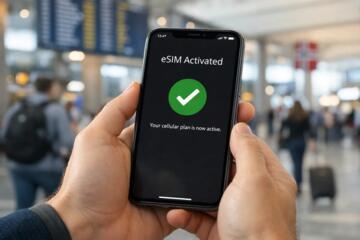
In practice, travelers often assume “no data” means “no calls,” or they assume an eSIM must be active for emergency calling. Those assumptions fail when the phone can register on Wi‑Fi calling, connect to a roaming partner network, or fall back to a different radio mode. If you land with an eSIM that is not activated, your first task is to check whether the phone can register to any cellular network and whether emergency calling works in your specific location.
Example: you arrive with an eSIM QR code but the plan is still pending. You can still test emergency calling behavior by dialing the local emergency number from the lock screen or dialer, then stopping if the call connects to the emergency operator. If the call fails, you switch to the next option—Wi‑Fi calling, a different network, or a nearby phone—rather than repeatedly retrying the same path.
Common Failure Points
People often get stuck because they treat emergency calling like a feature of the eSIM app rather than a network function. Emergency routing usually depends on the phone registering to a cellular network and the carrier’s emergency services configuration. If the device cannot attach to any network, the call cannot reach the emergency operator, even if the dialer shows the emergency number.
Another frequent mistake is confusing “SIM not provisioned” with “no radio access.” Some phones can still connect to a partner network for emergency calls, while others require an active subscription state. Carriers also differ in how they handle roaming and emergency call routing. A traveler may see “No Service” and assume the phone is fully offline, but the radio might still be able to attempt emergency call routing on certain bands.
Supporting technologies matter. Emergency calling can use cellular voice channels, and in some regions it can also use Wi‑Fi calling when configured. Location accuracy depends on network and device capabilities, such as GPS, Wi‑Fi positioning, and the emergency location database. If your location services are off, the operator may still receive a rough location, but the precision can drop.
On iPhone, for example, the iOS version can affect how the device handles Wi‑Fi calling registration. I’ve seen travelers with iOS 17.x settings that looked correct but had Wi‑Fi calling disabled on the line, which, frankly, most people skip when they focus on data plans.
What To Do Instead
Check Network Registration First
Start with the simplest signal checks before you rely on emergency calling. On Android, open Settings and look for the mobile network status; on iPhone, check the cellular status indicator and whether the phone shows a carrier name or “No Service.” If the phone shows any carrier or roaming label, emergency calling has a better chance because the device can attach to a network.
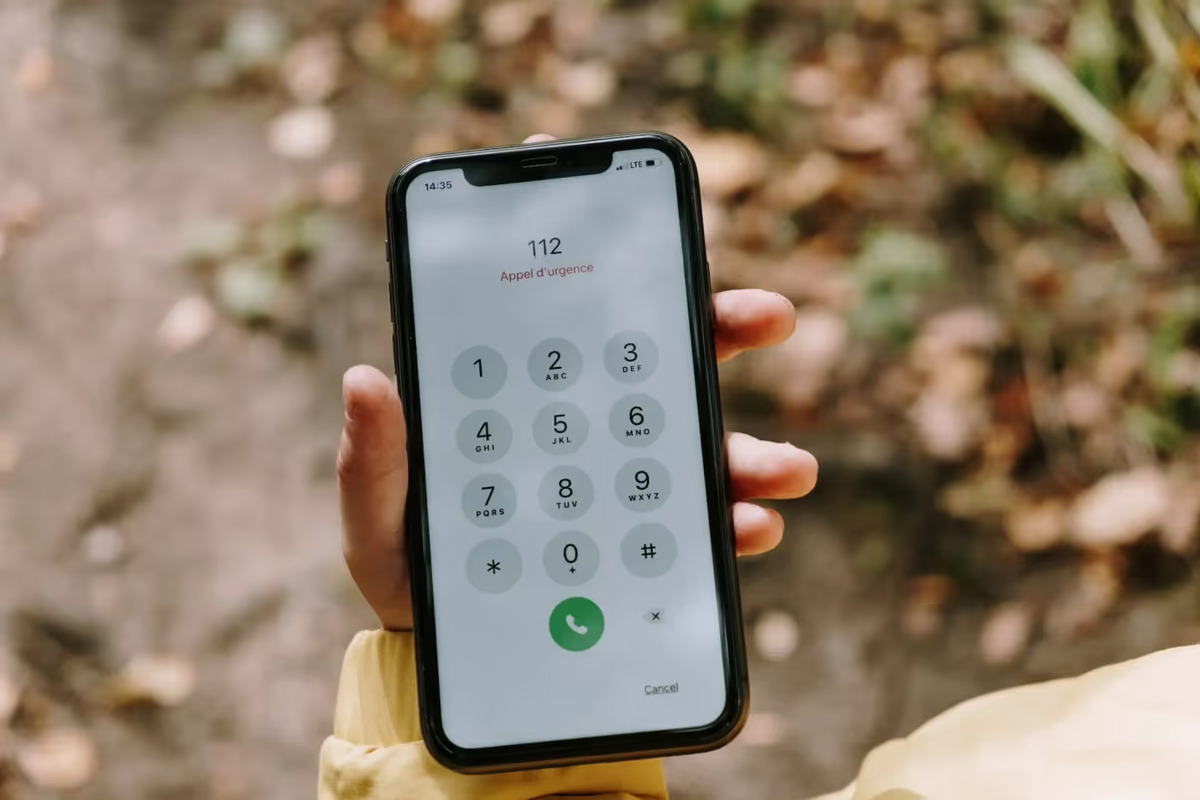
Then test the emergency number once. In many countries, dialing the local emergency number (such as 112 or 911) triggers emergency call handling even without an active plan, but the exact behavior depends on local regulations and network support. If the call fails immediately, don’t keep repeating the same attempt; move to the next step.
If you have multiple radios, try toggling Airplane Mode on and off to force a fresh network registration. This is a low-effort step that often helps when the phone is stuck in a partial registration state after travel.
Use Wi‑Fi Calling If Set Up
Wi‑Fi calling can carry voice calls over an internet connection, and in some locations it can also support emergency calling when the service is configured. The limitation is that Wi‑Fi calling must be enabled on the device and supported by the carrier plan. If your eSIM is inactive, Wi‑Fi calling may still work if it is tied to another active line, or it may not work at all.
On iPhone, check Settings > Cellular > Wi‑Fi Calling and confirm it is on for the relevant line. On Android, look for Wi‑Fi Calling under the SIM or Network settings. A small aside: on some Android builds, the Wi‑Fi calling toggle appears only after the SIM is provisioned, so it can look “missing” even when the phone supports the feature.
If Wi‑Fi calling is available, connect to a stable Wi‑Fi network and then test emergency calling once. If it connects, stay on the line and share your location details verbally, since the operator may still need confirmation.
Prepare Offline Contact Options
Before you travel, store emergency-related contacts and local numbers in a way that works without mobile data. Save the local emergency number, your accommodation’s phone number, and a trusted contact’s number. Keep them in your contacts app and also in a printed note in your wallet.
Carry a backup communication method. A common approach is to have a second phone or a friend’s phone number that can place calls through their active network. If you are in a hotel, ask the front desk about the local emergency number and whether they can call for you.
For location sharing, enable GPS and location services. Even without mobile data, many phones can determine location using GPS, and that can help you describe where you are if the operator asks for landmarks.
Escalate With Another Network
If your phone cannot place an emergency call, switch to a different available network path. Options include using another person’s phone with an active SIM, using a landline at a business, or asking staff to call emergency services on your behalf. In many places, emergency operators can handle calls from third parties, and the operator will ask for your location and situation.
When you do use someone else’s phone, be ready with your exact address, nearby street names, and a description of the nearest entrance or landmark. If you can, share a live location pin through a messaging app that works on Wi‑Fi, since emergency operators may not receive app-based location automatically.
Keep retries limited. Repeatedly dialing without success can waste time during an emergency, and it can also trigger call failure loops on some devices.
Case Examples
Scenario 1 (City arrival, eSIM pending): A traveler lands in a European city with an eSIM that shows “Not Activated.” The phone displays “No Service,” but Wi‑Fi is available at the airport hotel. The traveler checks Wi‑Fi calling settings and finds it disabled for the inactive line. They try the local emergency number once; the call does not connect. They then ask the hotel desk to call emergency services using their landline or staff mobile, and the operator confirms the address and a nearby landmark. The traveler stays on Wi‑Fi and shares a location pin from the phone’s map app.
Scenario 2 (Roaming mismatch, Android): A traveler uses an Android phone with an eSIM profile that is installed but not active. The phone shows a carrier name after a few minutes, suggesting network registration succeeded. The traveler tests the emergency number once from the dialer and the call connects. During the call, the operator asks for a precise location, and the traveler provides the building entrance details. Afterward, the traveler verifies that location services are enabled so future calls include better location information.
Decision Checklist
| Situation | What to check | Action | Likely outcome |
|---|---|---|---|
| eSIM installed, not activated | Cellular status shows a carrier or “No Service” | Try emergency number once; if it fails, use hotel/business phone or another person’s phone | May work if the phone can attach to a network; may fail if it cannot register |
| Wi‑Fi calling enabled | Wi‑Fi calling toggle is on for the active line | Connect to Wi‑Fi and try emergency number once | Can work in some regions; emergency location accuracy may vary |
| Phone shows “No Service” | Airplane Mode toggle and GPS/location services | Toggle Airplane Mode; if still no call, escalate via staff/landline/another phone | Emergency call usually fails without network access |
| Roaming confusion | Carrier label appears after a few minutes | Wait briefly for registration, then try emergency number once | May connect once registration completes |
Common Mistakes
One mistake is relying on the eSIM activation screen as proof that emergency calling will work. Activation status affects your plan and voice service, but emergency calling depends on network attachment and local emergency routing support. Another mistake is turning off location services to save battery; if the operator asks for your location, you lose a key tool for accuracy.
People also waste time by repeatedly switching between emergency numbers. Use the local emergency number for the country you are in, then stop once you reach an operator. If the call fails, switch methods rather than repeating the same dial attempt.
A practical frustration: travelers sometimes disable Wi‑Fi calling during setup because they want to “avoid extra settings,” then discover it is needed only when cellular fails. If you travel often, check Wi‑Fi calling once while you still have a working network, then note the setting location for your phone model.
Finally, don’t assume that “no data” means “no voice.” Voice and data can use different network paths, and emergency calling can behave differently from normal calls. The safest approach is to test once in a low-stress moment at your destination, when you can still correct course.
FAQ
Can I call 112 or 911 without an active eSIM?
In many places, emergency calling can work without an active plan if the phone can attach to a supported network. If the device shows “No Service” and cannot register, the call may fail even when the emergency number is dialed.
Does Wi‑Fi calling work for emergency calls?
It can, but only when Wi‑Fi calling is enabled and supported for your carrier line and location. Emergency location handling over Wi‑Fi varies, so you should still be ready to describe your location verbally.
Why does my phone show “No Service” after installing an eSIM?
An installed eSIM may not be provisioned for voice or may not be activated yet. Roaming partner availability and carrier configuration also affect whether the phone can register to any network.
What should I do if the emergency call fails?
Try one emergency call attempt, then switch to another method: use a nearby hotel/business phone, ask staff to call, or use another person’s phone with an active network. Prepare your address and nearby landmark details before you escalate.
Will emergency services get my location automatically?
Often they receive some location data from the network and your device sensors, but accuracy varies by country and network conditions. Keep location services enabled and be ready to provide a clear description of where you are.
Author's Insight
Emergency calling without an active eSIM is a network-registration problem more than a “SIM app” problem. The phone must reach a supported network path, and emergency routing rules differ by country and carrier. Device settings such as Wi‑Fi calling and location services affect what the operator receives, even when the emergency number is dialed correctly.
For travelers, the most reliable preparation is practical: verify cellular registration behavior at your destination, confirm Wi‑Fi calling settings for your phone model, and keep a backup contact method like a hotel desk or another phone. I’m not able to claim personal clinical experience, but the guidance aligns with how emergency calling depends on network attachment and location reporting mechanisms.
Key Takeaways
- Emergency calls depend on network attachment and local routing support, not only on whether your eSIM is active.
- Check whether your phone registers to any cellular network; if it shows “No Service,” plan a backup method.
- Wi‑Fi calling can help only when it is enabled and supported for your line and location.
- Test once in a low-stress moment, then keep a second path ready: staff/landline or another person’s phone.
- Have your address and nearby landmark details ready so the operator can locate you quickly.