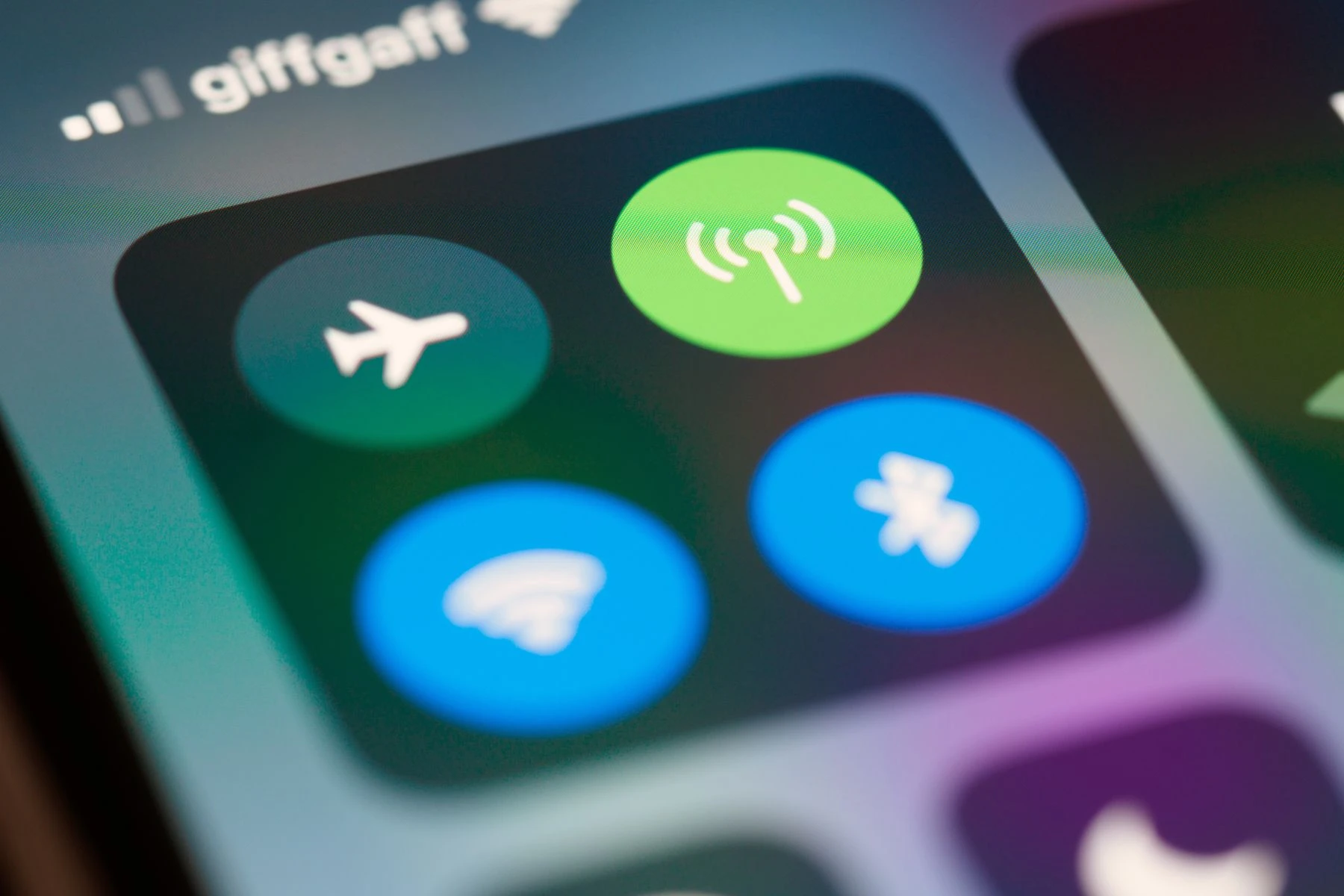
Airplane Mode And eSIM
Airplane Mode turns off radios used for cellular voice and data, plus often Wi‑Fi and Bluetooth depending on your phone settings. An eSIM is still stored on your device, but the phone stops using the cellular network connection that the eSIM represents. In practice, that means your eSIM profile remains installed while the service becomes unreachable until you switch cellular back on.
Most phones treat Airplane Mode as a radio state change, not a SIM removal. Your eSIM profile stays active in the background, and the carrier account does not “reset” just because you toggled Airplane Mode. The carrier may still show the line as registered when cellular is off, but you will not be able to reach the network while the radio is disabled.
Some travelers expect SMS to arrive during the flight. With cellular radios off, SMS delivery depends on the carrier’s store-and-forward behavior and your phone’s ability to reconnect immediately after landing. If you enable Wi‑Fi calling or use messaging apps over Wi‑Fi, messages can arrive without cellular service, but that is a different path than standard SMS.
What People Get Wrong
A common misunderstanding is that Airplane Mode “turns off the eSIM.” Airplane Mode disables the phone’s ability to use the cellular network. The eSIM profile remains present, and the carrier credentials remain on the device until you remove or replace the profile in the phone’s settings.
Another confusion comes from mixing cellular and Wi‑Fi features. Wi‑Fi calling and VoLTE behave differently from plain cellular voice. If Wi‑Fi calling is enabled before takeoff, calls may work over Wi‑Fi even while cellular is disabled, but only if your phone and carrier support it and you have a stable Wi‑Fi connection.
Dual-SIM setups add another dependency. If your phone has an eSIM plus a physical SIM, Airplane Mode typically disables both cellular lines. When you re-enable cellular, the phone may choose a default line for data and calls based on your settings, which can look like “the eSIM stopped working” when it is actually using the other line.
Device behavior also varies by model and OS version. On iPhone, for example, the exact toggle names and the interaction between Airplane Mode, Wi‑Fi, and “Wi‑Fi Calling” can differ across iOS releases. On Android, the wording may change across One UI and Pixel builds, and some manufacturers separate “Airplane Mode” from “Mobile data” toggles in the quick settings panel.
How To Handle It Safely
Check Your Phone’s Radio State
Before you board, confirm which radios are off. Open your phone’s settings and look for toggles such as Airplane Mode, Mobile Data, and Wi‑Fi Calling. If you use a flight mode that disables cellular but keeps Wi‑Fi on, you can test messaging over Wi‑Fi before takeoff.
On iOS 17, the Airplane Mode switch can be paired with a separate Wi‑Fi toggle. On Android, the quick settings panel may show “Airplane mode” plus a separate “Mobile data” switch, and the two do not always behave the same way across brands. If you see cellular still listed as “Searching” while Airplane Mode is on, that usually means a setting is re-enabling a radio, not that the eSIM is malfunctioning.
Plan For Calls And SMS
Standard cellular calls and SMS require the cellular radio to reconnect. During Airplane Mode, your line cannot register for incoming calls, so callers may hear voicemail or a carrier announcement depending on your plan and region. SMS messages may queue on the carrier side and deliver when your phone reconnects, but delivery timing varies.
If you need to receive time-sensitive messages, set expectations before travel. Turn on Wi‑Fi calling only if you have reliable Wi‑Fi access and you know it works on your line. If you rely on SMS for verification codes, test receiving one code over Wi‑Fi calling or an alternate channel, because some carriers route verification codes through SMS only.
For data, the phone will not use the eSIM for internet while cellular is disabled. If you need internet during the flight, use Wi‑Fi and confirm that your browser and apps do not force cellular data when Wi‑Fi is available.
Verify After You Land
After landing, turn off Airplane Mode and wait for network registration. A practical check is to open the phone app and confirm the carrier name appears, then test a short data action such as loading a webpage. If you use an eSIM for data and a different SIM for calls, verify the “Default line” settings for calls and data.
In many cases, the first connection attempt takes longer than expected. If you see “No service” for more than a few minutes, toggle Airplane Mode on and off once, then check whether the eSIM profile is set to active in SIM management. Avoid repeated toggling every few seconds; it can delay registration and drain battery.
Some carriers also require a brief period for provisioning updates after you travel. If your eSIM was installed recently, the first activation can take longer than subsequent days, and the phone may show temporary limited service while it completes setup.
Use A Simple Test Script
Before a trip, run a short checklist so you know what works on your exact setup. For example: send yourself an SMS, place a short call to a second phone, and confirm data over cellular. Then repeat after enabling Airplane Mode and re-enabling cellular to see what changes.
A lightweight “test script” reduces surprises. You can do it in under 10 minutes at home, and you will learn whether your carrier supports Wi‑Fi calling, whether SMS queues reliably, and which SIM the phone chooses for data. If you keep a note with your phone model and OS version, you can compare behavior across trips.
When you travel, keep the eSIM profile name visible in your SIM settings. Some phones label profiles by carrier, others by a custom nickname you set during installation, and that naming affects how quickly you spot the correct line.
Case Examples
Scenario 1: Dual SIM confusion after landing. A traveler uses an eSIM for data and a physical SIM for calls. During Airplane Mode, both lines stop. After landing, the phone reconnects but selects the physical SIM for data because the default data line changed during the flight. The traveler sees “mobile data off” on the eSIM line and assumes the eSIM failed, but switching the default data line fixes it.
Scenario 2: Verification codes over Wi‑Fi. Another traveler depends on SMS verification codes for a banking app. They keep Airplane Mode on during a layover and rely on Wi‑Fi. The app requests an SMS code and does not accept the Wi‑Fi connection as a substitute. Once cellular is re-enabled, the queued SMS arrives and the login succeeds.
Checklist For Decision Support
| What You Want | During Airplane Mode | After Cellular Is Back | What To Check |
|---|---|---|---|
| Calls | Usually unavailable unless Wi‑Fi calling is active | Calls work after registration to the cellular network | Wi‑Fi calling setting, default SIM for voice |
| SMS | Incoming SMS cannot arrive over cellular | Queued messages may deliver when cellular reconnects | Carrier behavior, reconnection time |
| Mobile Data | Not available over the eSIM while cellular is off | Data returns when the eSIM line is selected and registered | Default data line, APN settings if needed |
| Apps Over Wi‑Fi | Works if you keep Wi‑Fi on and apps use Wi‑Fi | May switch between Wi‑Fi and cellular based on settings | App data permissions, Wi‑Fi vs cellular preference |
Step-by-step checklist for the moment you land: turn off Airplane Mode, wait for the carrier name to appear, test a short data request, then confirm which SIM is set for data and calls. If something fails, change only one variable at a time so you can identify the cause.
Common Mistakes To Avoid
People often remove and re-add the eSIM profile when the real issue is a default line selection or a delayed network registration. Reinstalling can take time and may require carrier confirmation, so it is better to check SIM management first.
Another mistake is assuming Wi‑Fi calling works everywhere. Some carriers restrict it by region or require a prior setup. If Wi‑Fi calling was never tested on your line, it may not work during the flight or at the airport.
Travelers also confuse “Mobile data” with “Cellular radio.” Turning on Mobile Data while Airplane Mode is enabled does not always restore cellular service, because Airplane Mode can override the radio state. If your phone shows Airplane Mode on, treat cellular as unavailable until you switch Airplane Mode off.
Finally, people sometimes rely on carrier apps for status checks without verifying the phone’s own network indicators. A carrier app may show the plan is active while the phone still fails to register due to roaming restrictions or temporary coverage gaps.
FAQ
Does Airplane Mode Delete My eSIM?
No. Airplane Mode disables cellular radios. The eSIM profile remains installed on the device until you remove it in SIM settings or replace it with a new profile.
Will SMS Messages Arrive After I Turn Off Airplane Mode?
Often yes, but timing depends on the carrier and network. Messages may queue and deliver once the phone reconnects, while some services may not queue reliably.
Can I Make Calls Over Wi‑Fi While Airplane Mode Is On?
Sometimes. Calls can work if Wi‑Fi calling is enabled and your carrier and phone support it, and you have a working Wi‑Fi connection.
Why Does My Phone Show “No Service” After Landing?
Common causes include delayed network registration, roaming restrictions, or the phone selecting the wrong SIM for data or voice. Recheck SIM management and wait a few minutes before troubleshooting further.
Does Airplane Mode Affect eSIM Data Usage?
Cellular data usage stops while the cellular radio is off. If you use Wi‑Fi, data usage shifts to Wi‑Fi, and your carrier may not count it as cellular data.
Author's Insight
Airplane Mode changes radio availability, while an eSIM is a stored identity and provisioning profile on the device. That separation explains most “it broke” moments: the profile stays, but the phone cannot reach the network until cellular is re-enabled and registration completes. Phone behavior differs by OS and carrier features like Wi‑Fi calling, so testing with a short call, SMS, and a data check before travel reduces uncertainty. If you see persistent “No service” after landing, the most reliable troubleshooting path is SIM settings first, then network indicators, then carrier support.
Key Takeaways
- Airplane Mode disables cellular radios; it does not remove your eSIM profile.
- Calls and SMS over standard cellular usually stop until you turn Airplane Mode off and the phone reconnects.
- Wi‑Fi calling can work during Airplane Mode only when it is enabled and supported on your line.
- After landing, verify default SIM selection for calls and data before reinstalling the eSIM.