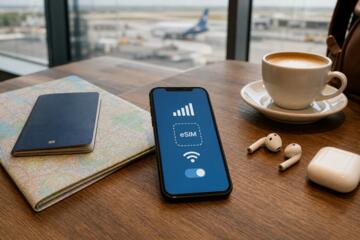
eSIM Data During Layovers
eSIMs can keep your phone on mobile data during a connection without swapping a physical SIM. During a layover, the phone often needs short bursts of data for maps, flight updates, translation, and messaging, then goes idle again. That pattern matters because many eSIM plans meter data in fixed increments and may throttle after a quota. A practical example: you land, open your airport map, check gate changes in an airline app, then send a few messages before boarding. If the eSIM is not active when you arrive, the phone may fall back to roaming or lose connectivity until you manually switch networks.
Most eSIM setups depend on three moving parts: the eSIM profile on your device, the carrier’s activation window, and the phone’s network selection behavior. Some carriers activate instantly after purchase, while others require you to scan a QR code and complete an in-app activation step. Your phone model and operating system also affect how quickly it can register on a new network; on iOS 17.6, for example, the cellular data switch can take a few seconds after you toggle it. On Android, the “Preferred network type” and APN settings are usually automatic, yet a mis-set setting can leave you stuck on Wi‑Fi only.
What People Get Wrong
Many layover problems come from assumptions about timing and network behavior rather than from the eSIM itself. People often buy an eSIM for the destination country but arrive in a different country than the one they planned for, then the profile has no compatible network. Another frequent issue is activation timing: the eSIM may show as installed but not active until a specific step completes. Some plans also restrict data to certain regions, and the phone may connect to a roaming partner that is not covered.
Another common mistake is treating “data” as a single number. Maps and messaging apps behave differently: navigation can download map tiles and continuously refresh location, while chat apps may use small bursts. Streaming uses larger, steadier throughput, and video calls can spike data usage quickly. People also forget that background sync continues after you land, especially if you have email, cloud backups, or app updates set to run on cellular. That background activity can consume a surprising share of a small data allowance, then you notice it only after you try to load a gate screen.
Finally, users sometimes rely on Wi‑Fi at the airport without checking whether it requires a captive portal login. Captive portals can break app sessions, and some eSIM users switch back and forth between Wi‑Fi and cellular, which can trigger repeated logins. If your airline app or ticketing app requires a stable session, the switch can feel like “the eSIM stopped working,” even when the data connection is fine.
5 Layover Data Scenarios
Scenario 1: Airport navigation and signage translation. You open maps to reach a terminal, then use translation for signs or announcements. Data use depends on map mode: offline maps reduce downloads, but live routing still pulls data. A typical layover pattern might use 20–80 MB for short navigation if you already have the airport area cached, and 100–300 MB if you rely on live map tiles and repeated reroutes. Translation apps can add another 5–30 MB depending on how often you use camera translation versus text input.
Scenario 2: Ride-hailing or public transit lookup. You check pickup points, fares, and route times, then refresh the app while waiting. Many ride-hailing apps load maps and location updates, which can average 50–150 MB over 1–2 hours, with spikes when you open the map view repeatedly. If you use live traffic layers, the data draw increases. If you download the transit route ahead of time on Wi‑Fi, you can cut the usage to mostly messaging and occasional refreshes.
Scenario 3: Messaging and flight updates. You send texts, use WhatsApp/Signal/Telegram, and check flight status in an airline app. Messaging is usually low data, often under 10–30 MB for a couple of hours, unless you send or receive photos and videos. Flight status apps can be light, but they may refresh frequently and load images or seat maps. A realistic estimate for “check status, send a few messages, and open the gate screen once” is often 10–60 MB, assuming no large attachments.
Scenario 4: Streaming while waiting. You watch a short video, stream music, or catch up on a podcast with video. Audio streaming typically uses less data than video, but video can grow quickly. As a rough planning range, standard-definition video may consume around 700 MB per hour, while higher resolutions can exceed 1 GB per hour; music streaming is often closer to 50–150 MB per hour depending on bitrate. If your layover is 45 minutes, streaming can consume most of a small 1 GB allowance, and the throttle can arrive before boarding.
Scenario 5: Offline-to-online syncing and backups. You land, then your phone syncs photos, uploads documents, or updates apps in the background. This scenario is the hardest to predict because it depends on your library size and settings. A common pattern: your phone may start uploading a backlog of photos right after cellular registers, and that can exceed 1 GB fast. If you use cloud backup, check whether it is set to run on cellular; many users leave it on by accident. When you see “Uploading…” after landing, you can pause sync to preserve your remaining allowance, then resume on Wi‑Fi later.
Advice For Predictable Usage
Pre-activate Before You Land
Install the eSIM profile and complete activation while you still have stable Wi‑Fi or before boarding. If the carrier requires an in-app step, do it at home or at the airport before you switch off airplane mode. On iOS, open Settings > Cellular and confirm the eSIM line shows as active; on Android, check Settings > Network & Internet > SIMs or Mobile network. If you arrive and the eSIM line shows “no service,” switch cellular data to that line and restart network selection once, then wait a minute for registration.
For a short layover, aim to have data working before you need it. A practical aside: on my test device with iOS 17.6, toggling cellular off and back on after landing took about 20–30 seconds to regain service, which felt longer than it was. That delay can matter when you’re trying to locate a gate quickly.
Set Data Limits And Background Sync
Turn off background app refresh for nonessential apps and pause cloud backups on cellular. Many phones include a “Data Saver” mode; on Android, it can reduce background traffic, though some apps ignore it. On iOS, you can disable “Cellular Data” for specific apps in Settings > Cellular. If you use email, set it to fetch on Wi‑Fi only for the layover window.
To estimate usage, check your current data consumption in the phone’s data usage screen. Then compare it to your layover length and planned activities. If you have a 2 GB plan and you expect heavy navigation plus messaging, you can plan for roughly 200–500 MB total, leaving room for a few photos or a short video. If you expect streaming or photo uploads, you need a larger allowance or a Wi‑Fi plan.
Use Offline Maps And Downloads
Download airport maps, transit routes, and translation packs on Wi‑Fi before you arrive. Offline maps reduce repeated tile downloads and keep navigation usable even if the network registration takes time. If your translation app supports offline language packs, download them before travel; camera translation often still needs data, but text translation can work offline depending on the app.
Offline downloads also reduce the “open the app and wait” problem. When you land, you can open maps instantly, then switch to live routing only when you confirm the eSIM is connected. That approach keeps your first minutes efficient, even when the airport Wi‑Fi is slow or requires repeated logins.
Plan For Throttling And Coverage Gaps
Some eSIM plans throttle after a quota rather than cutting off completely. Throttling can still load text and messaging, but it may slow maps and video. Coverage gaps can happen even within the same country because carriers use partner networks. If you rely on ride-hailing, keep a fallback: save the pickup address and consider taking a screenshot of the route details while you have a stable connection.
A mild frustration many travelers report: the eSIM shows “connected” but apps fail to load due to DNS or captive portal interference. If that happens, switch briefly to airplane mode, then back, or toggle Wi‑Fi off to force cellular routing. On Android, clearing the browser’s cached login for the captive portal can help if you previously used airport Wi‑Fi.
Educational Case Examples
Case 1 (Short connection, light use): A traveler has a 90-minute layover and uses the airline app for gate changes, sends a few messages, and checks a map once to find the correct terminal. They activated the eSIM before landing and kept background sync paused. Their data usage after boarding is around 35–70 MB, mostly from the airline app refreshes and map loading. The eSIM line stayed active throughout, and the phone never fell back to roaming because cellular data was set to the eSIM profile.
Case 2 (Longer wait, mixed use): Another traveler has a 4-hour layover and watches a short video series while waiting, then uploads photos to cloud storage after landing. They did not disable cellular uploads, so the phone began uploading a backlog immediately after network registration. Their data usage exceeded 1 GB within the first hour, and video playback slowed after the plan’s quota threshold. They later paused cloud sync on cellular and finished the rest of the wait using offline maps and messaging only.
Scenario Checklist And Table
| Scenario | Typical Use | Planning Range | What To Watch |
|---|---|---|---|
| Airport Navigation | Live maps, reroutes, translation | 20–300 MB | Offline tiles vs live routing |
| Ride-Hailing/Transit | Map views, pickup lookup | 50–150 MB | Repeated map refreshes |
| Messaging/Flight Status | Chats, gate updates | 10–60 MB | Photo/video attachments |
| Streaming | Video, music, podcasts | 45 min: 400 MB–1.2 GB+ | Resolution and bitrate |
| Sync/Backups | Photo uploads, app updates | Can exceed 1 GB quickly | Cellular upload settings |
Step-by-step layover setup checklist:
- Before boarding, confirm the eSIM plan covers the arrival country and the carrier has partner coverage at the airport region.
- Install the eSIM profile and complete activation while you have Wi‑Fi.
- On your phone, set cellular data to the eSIM line and keep Wi‑Fi on only if you need it for downloads.
- Download offline maps or transit routes for the airport area.
- Pause cloud backups and app updates on cellular for the layover window.
- After landing, open one critical app (maps or airline status) to verify data works before you rely on it.
- If data fails, toggle airplane mode once, then switch cellular data back to the eSIM line.
Common Mistakes To Avoid
Buying an eSIM that matches the destination city instead of the layover country causes “no service” even when the phone shows the profile installed. Another mistake is assuming that a QR code installation equals activation; some carriers require a separate confirmation step after installation. People also forget to check that the phone’s data roaming setting does not override the eSIM behavior; on some devices, roaming controls can affect how the phone chooses networks.
Many travelers also leave automatic app updates on cellular. Those updates can start immediately after registration and consume data in the background, then you notice only when maps load slowly. Another practical issue: if you switch between airport Wi‑Fi and cellular repeatedly, some apps log out and re-authenticate, which can increase data use and delay access to tickets or boarding passes.
Finally, travelers sometimes ignore the plan’s terms on throttling and fair-use limits. A plan may continue working after quota but at reduced speeds, which changes expectations for maps, streaming, and app loading. Reading the plan’s data policy before travel prevents surprises when the layover is long and you planned for “unlimited” behavior.
FAQ
Do I Need An eSIM For A Layover?
You need it only if you want mobile data during the connection and you do not plan to rely on airport Wi‑Fi. If your layover is short and you can use offline maps plus Wi‑Fi for ticketing, you may not need cellular data.
How Much Data Do Maps Use?
Live navigation can use tens to a few hundred MB depending on reroutes and whether you download offline tiles. Offline maps reduce downloads, and using text directions instead of continuous map rendering lowers usage.
Will My Phone Switch To The eSIM Automatically?
Often it does, but the phone may keep using Wi‑Fi or another SIM profile until you set cellular data to the eSIM line. After landing, verify by opening a data-dependent app and checking the cellular indicator.
Can I Use An eSIM If I Land In A Different Country?
Yes only when the eSIM plan covers that arrival country and has a compatible partner network. If the plan coverage does not match the layover country, the profile may show no service.
What Happens When I Hit The Data Limit?
Many plans throttle after quota rather than stopping immediately, which slows map loading and streaming. Some plans cut off data entirely; the plan terms describe which behavior applies.
Author's Insight
eSIM performance during layovers depends less on the QR code and more on network registration, app background behavior, and plan metering rules. Phone operating systems handle cellular switching differently, so verifying connectivity with one critical app after landing prevents wasted time. Data planning works best when you separate low-burst tasks (messaging, flight status) from steady high-throughput tasks (video streaming) and from unpredictable tasks (cloud backups). If you treat the layover as a short “data window” and pause background sync, your usage becomes easier to predict.
For readers who want a quick check, compare your expected activities to the planning ranges in the table, then choose a plan that leaves headroom for background uploads. If your plan is small, offline maps and paused cellular backups reduce the risk of hitting throttling before boarding.
Key Takeaways
- Activate and verify the eSIM before you need it, then confirm data works by opening one essential app after landing.
- Plan data by scenario: messaging is usually low, navigation is moderate, streaming is high, and backups can spike.
- Pause cellular background sync and app updates to prevent “mystery” usage during the connection.
- Coverage and throttling rules vary by plan, so read the plan terms and keep a fallback plan if speeds drop.