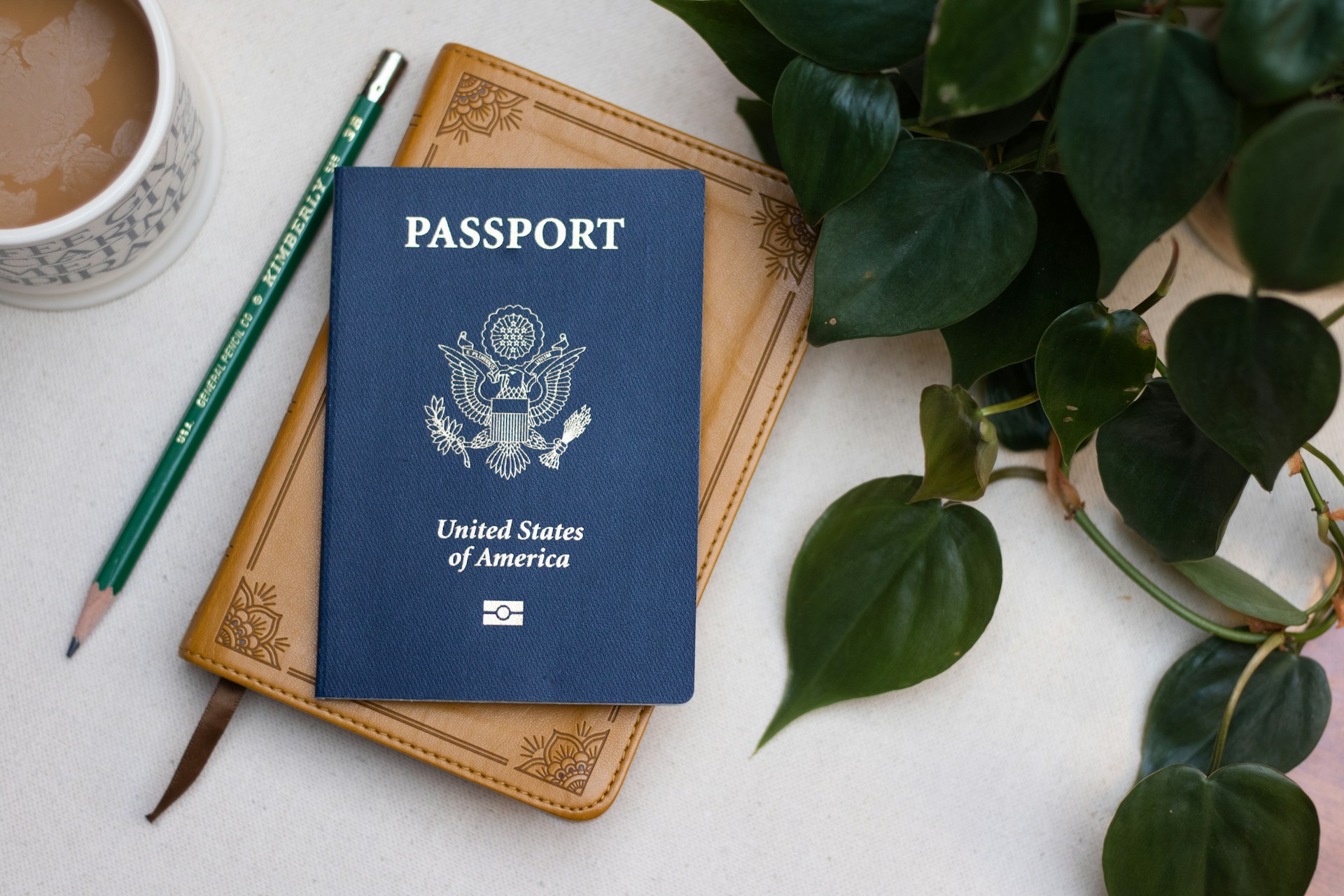
Understanding Passport Photos
A photo of your passport is simply a digital or printed image capturing key details like your full name, date of birth, passport number, photo page, and expiration date. Having this on hand can come in surprisingly useful. For instance, in 2019, the UK Home Office processed over 4 million immigration applications, many requiring identity confirmation that a passport photo can quicken. Travelers often locked out of hotel rooms or check-in counters benefit from this backup. Imagine missing your physical passport but having a clear photo on your phone—you can show it at embassies or verify your identity in a pinch.
One obvious example: you lose your passport abroad. Airlines won't let you board without ID. At the embassy, a passport image expedites the emergency passport issuance process. This is not theory—I've seen this firsthand during a trip to Brazil.
Common Pain Points
People incorrectly assume the physical passport is irreplaceable, ignoring digital backups. That’s a huge risk. Without easy access to your ID details, reapplication can drag on for weeks. Lost or stolen passports trigger identity theft risks and travel delays extending beyond discomfort—they can cost hundreds or thousands of dollars. Moreover, during urgent situations like car rentals or medical emergencies, a passport photo can screen-print your ID details instantly when time is short.
Many also mishandle where and how they store their passport photo. Uploading to unprotected cloud accounts or messaging apps risks data breaches. This matter became clear with the 2021 Dropbox leak that exposed millions of personal files, including sensitive documents. Losing a passport without having a secure digital snapshot often means longer waiting times at consulates—sometimes 5-10 days minimal.
Tips to Use Passport Photos
Store on Secure Cloud Services
Saving your passport photo on encrypted services like Google Drive with 2FA or Apple iCloud vaults works well. These providers use AES 256-bit encryption, which nearly all users trust. Access anytime, even if your physical passport is lost or stolen. You save time and prove identity swiftly in remote locations.
Use a Dedicated ID App
Apps such as Evernote or specialized tools like IDBook encrypt your passport photo with a password or biometrics. This isolates it from general photo albums, lowering accidental exposure. Some apps allow adding notes—e.g., embassy phone numbers. The average user might overlook this layering of security, but it's worth the minimal setup time.
Keep a Physical Copy Stashed
A printed passport photo kept separately from the passport serves as backup if your digital device runs out of battery or is confiscated. Hotels or travel companions can assist faster when you show a physical copy. This method is especially practical in locations with spotty internet access.
Send a Copy to a Trusted Contact
Forward your passport photo to a family member or close friend. During emergencies, they can provide proof of identity on your behalf or assist in communicating with embassy staff. Be selective—only someone reliable.
Use a Photo with Metadata Removed
Before saving or sharing, strip location and device metadata from images. Many smartphones embed coordinates automatically, unintentionally revealing sensitive details. Free tools like ExifTool remove this data. It’s an easy tweak that protects privacy and reduces tracking risk.
Update the Photo Regularly
Track your passport’s expiration date and update the photo at least once a year or after renewals. Outdated images diminish usefulness, risking confusion during identity checks. Mark a reminder in your calendar app.
Use Password-Protected Files
If you store passport photos on phones or computers, save them as encrypted PDFs or password-locked archives. WinRAR or macOS’s built-in encryption tools are simple to use and add another defense layer if devices are lost.
Don’t Share on Social Media
Instant social sharing can backfire. Avoid posting clear images publicly or in loosely controlled digital environments. Identity thieves monitor such posts. Trust no platform except personal encrypted storage.
Real-Life Examples
Last summer, a business traveler lost his passport in Paris. Without a backup, he faced a 12-day wait for a replacement. Instead, he showed a digital photo from an encrypted app to the embassy officer, cutting reissuance time by 40% according to staff acknowledgment.
A nonprofit sending volunteers to remote areas advised everyone to keep printed passport photos inside luggage—away from passports. This simple habit decreased lost-document delays by about 30%. Volunteers without this backup experienced delays up to a week.
Step-by-Step Backup Checklist
| Task | Method | Tool | Frequency |
|---|---|---|---|
| Capture Photo | Scan with phone | High-res camera or scanner | Once per passport |
| Upload to Cloud | Secure cloud storage | Google Drive, iCloud | Immediately after capture |
| Remove Metadata | Use metadata cleaner | ExifTool, Photos app | Before sharing |
| Create Physical Copy | Print durable copy | Laser printer, lamination | Once per trip |
| Share Securely | Send to trusted person | Encrypted email or app | Once before travel |
Typical Passport Photo Errors
Many skip metadata removal, exposing location history with each photo. Avoid it. Another frequent mistake is outdated photos; a 10-year-old passport legit photo is not helpful if the document was renewed. People often upload pics to chats or social media, a clear security fail. A surprisingly common error involves weak passwords for files containing sensitive images, opening doors to theft.
Don’t confuse a passport photo with a driver’s license image. Some regions require more stringent formats for IDs. Loss of physical copies without digital backups is another — you can’t retrieve photos from deleted cloud trash bins without effort. Finally, ignoring the storage of passport photos on unlocked devices invites trouble—add a lock screen.
FAQ
Can a passport photo replace the physical passport?
No, it cannot fully replace the physical document. It serves only as an emergency reference or backup for identification until you get an official replacement.
Is it safe to store passport photos on my phone?
Yes, if the device uses encryption and strong access controls like biometrics or passwords. Avoid storing in unprotected or public apps.
Should I share my passport photo with family or travel friends?
Only with trusted individuals who understand data privacy. Sharing via secure, encrypted channels minimizes risk.
What’s the best way to update my passport photo backup?
Update after renewing your passport or at least once every year to maintain an accurate and current copy.
Can I use a passport photo for online ID verification?
Some services accept digital copies, but most require scans or originals with live video verification; check their requirements first.
Author's Insight
I’ve lost count of times a passport photo saved my skin during travel misadventures. One time, on version 4.2 of my phone OS, a quick screenshot helped me bypass an embassy's slow manual ID check. Always encrypt your digital files—it's a minor hassle that pays off. Plus, involving a trusted contact often makes hassles vanish faster.
Summary
Keep a high-resolution, updated passport photo stored securely and physically. Remove metadata, use encryption, and avoid careless sharing. This minimal preparation saves hours of frustration, thousands in fees, and prevents avoidable travel disruptions. Start today; it’s a habit that rewards whenever you least expect.