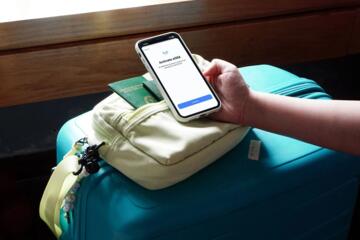
Deleted ESim Profile
An eSIM profile is the carrier configuration stored on your device. Deleting it removes the settings that let your phone authenticate to the mobile network, so the device may show no service for that line even if the phone itself is fine. This can happen after a factory reset, a “remove plan” action in the phone settings, or a carrier app action that clears the plan. If you are traveling, the timing matters because you may lose data and call routing immediately.
Recovery depends on how the eSIM was installed. Some profiles come from a QR code or activation code tied to a carrier account, while others are downloaded through a carrier app or a device vendor’s eSIM management flow. In practice, the same “deleted” label can hide different states: the profile is gone from the device, but the carrier may still treat the plan as active, expired, or transferable. That difference drives what you can do next.
For example, on iPhone you can check Settings, then Cellular, then the eSIM line name. On Android, the path varies by manufacturer, but it usually sits under Settings, then Network or SIMs, then Mobile plans. I have seen people delete the plan to “fix” a data issue, then discover the carrier did not reissue the activation credentials.
What People Get Wrong
Many recovery attempts fail because the user assumes the phone holds a reusable copy of the activation data. Most eSIM profiles are not designed as a backup you can restore later without the carrier’s re-download or reactivation process. When the profile is deleted, the device typically cannot recreate the carrier keys on its own.
Another common mistake is mixing up device unlock status with eSIM readiness. A locked phone can still store an eSIM, but some carriers restrict activation to certain device models or require the phone to be unlocked for the line to register. If the phone was recently locked or re-locked after a reset, the carrier may reject the activation request.
People also underestimate carrier-side limits. Many carriers allow only a limited number of activations or re-downloads per eSIM plan, and some require the plan to be in a specific state. If you deleted the profile after the plan expired, the carrier may treat it as ended even if the QR code still exists in your email.
Finally, users sometimes rely on the wrong “support” channel. The device manufacturer can help with eSIM management menus, but it usually cannot reissue carrier activation codes. The carrier can re-provision the plan, but it may not have visibility into why the phone UI shows “deleted” or “not provisioned.”
Four Recovery Scenarios
Scenario planning helps because each scenario points to a different source of truth: your carrier account, your original activation method, or the device’s eSIM management history. Below are four realistic scenarios travelers encounter, with practical steps and what outcomes to expect.
1) Plan Still Active
If the carrier account shows the plan as active, you usually need to re-download or re-provision the eSIM profile. Start by checking the carrier app or account portal for “Manage eSIM” or “Reinstall profile.” If you have the original QR code or activation code, some carriers accept it for re-download, while others require a fresh code issued after deletion.
On iPhone, after you tap “Add Cellular Plan,” the phone may prompt for a QR code or activation details. On Android, the flow often asks you to scan a QR code or enter a confirmation code. In both cases, expect the process to take minutes, but registration on the network can take longer if the carrier is busy or if you are in a low-coverage area.
Personal aside: I once watched a traveler scan the QR code twice on the same day, then the carrier blocked additional attempts. The phone showed the plan as “added,” but the line never registered until the next day.
2) Plan Expired Or Ended
If the carrier account shows the plan as expired, recovery usually means re-purchasing or reactivating a new plan. Deleting the profile does not extend validity. Some carriers offer a grace period for re-download, but that window varies by provider and contract type.
Practical step: open your carrier account and check the “valid until” date and the plan status. If the plan is ended, request a replacement eSIM or a new activation. If you have a QR code from the original purchase, it may still work only if the carrier treats it as reusable within the validity window.
Realistic outcome: you may regain service the same day if you can purchase a replacement quickly, but you should plan for downtime while the new profile downloads and registers.
3) You Reset The Phone
A factory reset removes the eSIM profile from the device. Recovery then depends on whether the carrier allows re-download after a reset and whether the plan remains active. If the carrier supports “reinstall on new device,” you can often add the eSIM again using the original QR code or by requesting a new activation code.
Before you reset again, record what you can: the eSIM line name, carrier name, and any order or activation email. If you still have access to the carrier app, check whether it lists the eSIM as “installed” or “available.” Some carriers tie re-download to account authentication, so you may need Wi-Fi and the ability to sign in.
Personal aside: on iOS 17.3 (released in early 2024), the Cellular menu wording changed slightly for some users, which made them think the plan was gone when it was actually just not active.
4) Multiple Profiles Or Wrong Line
Sometimes the profile is not deleted; the phone is using the wrong line. If you have multiple eSIMs or a physical SIM, the device may route calls and data to a different plan. In that case, the fix is switching the default line for data and calls rather than re-downloading.
Check the device settings for “Default Line” or “Cellular Data” and confirm the intended eSIM is selected. Also verify that the eSIM line shows a status like “active” or “available.” If the line is marked as “not provisioned,” then it is likely deleted or removed.
Realistic outcome: correcting the default line can restore data within seconds, while re-downloading a deleted profile can take several minutes plus network registration time.
Educational Case Examples
Example A: A traveler in Spain deleted an eSIM profile after a data outage. Their carrier account still showed the plan as active with a validity date two weeks away. They re-added the plan using the carrier app’s “Reinstall eSIM” option. The profile downloaded successfully, but network registration took about 10 minutes because the phone was switching between Wi-Fi calling and cellular. After selecting the eSIM as the default data line, data returned.
Example B: A traveler who reset their phone before a flight tried to re-scan the original QR code from an email. The carrier account showed the plan as expired the previous day. The QR code flow completed, but the carrier rejected activation during registration. The traveler requested a replacement eSIM from the carrier, purchased a new plan, and restored service later that day after the new profile downloaded and the line registered.
Recovery Checklist And Comparison
The table below helps you decide which path to try first. Use it after you confirm whether the carrier plan is active and whether your phone still lists the eSIM line.
| Situation | What To Check First | Likely Next Step | Typical Outcome |
|---|---|---|---|
| Plan Deleted, Still Active | Carrier app or account status | Reinstall or re-download eSIM | Service returns after registration |
| Plan Expired | Validity date and plan state | Purchase replacement or new activation | Downtime until new profile registers |
| Factory Reset | Account access and re-download policy | Add eSIM again using code or app | Reprovisioning if carrier allows it |
| Wrong Line Selected | Default line for data and calls | Switch default line, then test | Fix in seconds if profile still exists |
Step-by-step checklist for the next 30 minutes:
- Confirm the eSIM line is missing or present in the phone’s Cellular or SIMs menu.
- Check the carrier app or account portal for plan status and validity date.
- If the plan is active, look for “Reinstall,” “Download again,” or “Manage eSIM” in the carrier app.
- If the plan is expired, request a replacement plan rather than repeating QR scans.
- Verify the default line for cellular data and calls after re-adding the profile.
- Test with a basic action: open a web page over cellular data with Wi-Fi off.
Common Mistakes
Repeating QR scans after the carrier blocks additional activations wastes time. Many carriers track attempts and require a cooldown period. If the carrier app shows an error code, stop and use that code when contacting support.
Another mistake is deleting the wrong line when multiple profiles exist. People with both a physical SIM and an eSIM sometimes remove the eSIM, then discover the physical SIM was disabled for data routing. Confirm which line is selected for cellular data before removing anything.
Some travelers rely on screenshots of QR codes without checking whether the carrier requires a fresh activation code after deletion. A QR code can be tied to a specific activation session, and the carrier may treat it as single-use.
Finally, users sometimes contact the device manufacturer support first and wait for a carrier-side fix. The device team can help with eSIM menu behavior, but it cannot reissue carrier credentials. If you have the carrier name and plan order number, include them early in the support request.
FAQ
Can I restore a deleted eSIM profile?
Restoring usually requires re-downloading or reactivating the profile from the carrier. The phone typically cannot recreate the carrier credentials after deletion.
What if I deleted the eSIM after a reset?
If the plan remains active, you can often add the eSIM again using the carrier app or the original activation method. If the plan expired, you usually need a replacement plan.
Why does the eSIM show “not provisioned” after re-adding?
That status often indicates the carrier rejected activation or the plan is not in an active state. Check the carrier account for validity and activation limits, then retry only if the carrier allows it.
Will scanning the old QR code always work?
Some carriers accept the original QR code for re-download within the plan validity window, while others require a new activation code after deletion. The carrier app or account portal usually shows the correct path.
How long should eSIM recovery take?
Re-downloading the profile often takes minutes, while network registration can take longer depending on coverage and carrier load. Plan for a downtime window of at least several minutes.
Author's Insight
“Deleted eSIM profile” is a device-side state, while activation and validity are carrier-side states. Recovery works when the carrier still treats your plan as active and allows re-provisioning, or when you can switch to a new plan. Device settings matter too, because the phone can keep an eSIM installed but route data through a different line. If you collect the carrier name, plan status, and any error messages, support requests become faster and less repetitive.
For practical troubleshooting, treat the carrier account as the source of truth and use the phone menu only to confirm what the device currently holds. A small detail like iOS version or Android build can change menu labels, but it does not change the carrier’s activation rules.
Key Takeaways
- Deleting an eSIM profile removes it from the device, so recovery usually requires carrier re-download or reactivation.
- Carrier plan status (active vs expired) determines whether reinstallation works or a replacement is needed.
- Check default line settings after re-adding, since wrong routing can mimic a deleted profile.
- Stop repeating QR scans when the carrier blocks attempts; use the error message when contacting support.