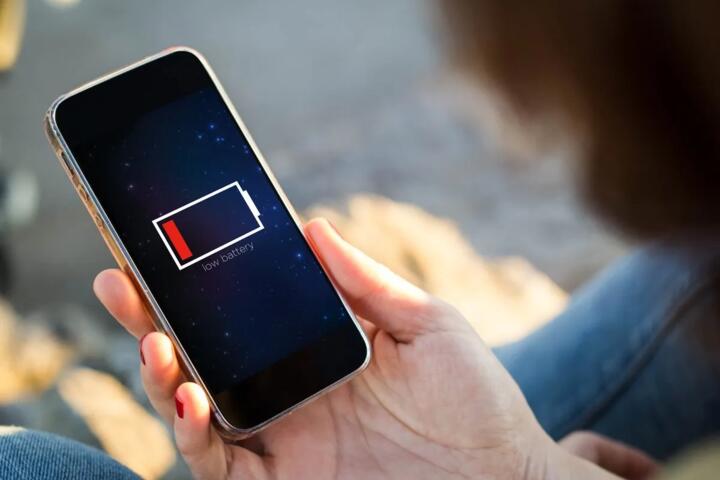
5G And Travel eSIM Battery
5G can draw more power than 4G on some phones, yet the biggest driver during travel is usually radio conditions. When your device has to search for a usable signal, it spends extra energy on scanning, handovers, and retransmissions. A travel eSIM adds another variable: the carrier profile and network behavior that your phone selects while roaming.
In practice, “5G drains more battery” often becomes “5G drains more battery in weak or unstable coverage.” For example, a train crossing rural areas can trigger frequent network reselection, even if the phone briefly shows a 5G icon. That icon alone does not tell you whether the phone is receiving strong 5G signal or struggling to maintain it.
On many Android and iOS devices, the modem’s power use depends on bands, signal strength, and whether the phone can stay on a stable serving cell. If the phone falls back to LTE or 3G, the battery impact may shift again. You can see this by watching battery graphs in the OS and correlating them with signal bars and data usage.
Common Battery Pain Points
People often blame 5G for battery drain when the real cause is coverage and mobility. Weak signal forces the modem to increase transmit power and spend more time negotiating connections. Roaming can worsen this because the visited network may have different coverage patterns, congestion, or handover behavior than the home network.
Another frequent misunderstanding is assuming the phone always uses the same radio mode. Many devices switch between 5G and LTE depending on availability, traffic load, and carrier configuration. A “5G” label may persist while the phone actually relies on LTE for parts of the connection, so battery impact does not map cleanly to the icon.
Background activity also matters. If your eSIM data plan is active, apps may refresh more often, and location services can keep radios awake. Some travel eSIM apps also run periodic checks for plan status, which can add small wakeups that add up over a long day.
Finally, device settings can override carrier behavior. If you enable “5G/auto” and the phone keeps chasing 5G in a low-signal area, battery can drop faster than expected. If you lock to LTE, the phone may stop searching for 5G and settle into a steadier connection, though speeds may be lower.
How To Reduce Battery Drain
Test Signal Before You Travel
Before leaving home, check how your phone behaves in your usual coverage. On iOS, open Settings > Battery to see which apps and radios consumed power; on Android, use Settings > Battery > Battery usage (wording varies by version). If you see “Mobile network” or similar categories rising quickly, your device may be sensitive to roaming behavior.
During the first hour after arrival, watch the signal indicator and battery trend together. If battery drops faster when the phone shows 5G but signal bars are low, the modem is likely spending energy on unstable connections. A small aside from field practice: on one Pixel running Android 14 (build date 2024-11), the “Mobile network” line spiked during repeated reselection in a basement area, even though data usage stayed modest.
Use a simple test: turn off Wi‑Fi, then compare battery drain over 15–30 minutes in the same spot with 5G enabled versus LTE-only. Repeat once in a second location with better signal. The difference tells you whether your drain is coverage-driven or radio-mode-driven.
Use LTE-Only When Coverage Is Weak
If your phone supports it, switching from “5G/auto” to “LTE only” can reduce battery drain in areas where 5G is intermittent. The tradeoff is slower speeds and potentially higher latency for some services, but messaging and maps usually remain usable. This approach works best when you notice the phone repeatedly toggling between 5G and LTE.
On many Android devices, the setting appears under Settings > Network & Internet > SIMs > Preferred network type. On some iPhones, you can influence 5G behavior via Settings > Cellular > Cellular Data Options, though exact options vary by model and iOS version. If you see no LTE-only option, you can still try toggling “5G Auto” versus “5G On” where available.
Realistic outcome: in weak coverage, users often see a noticeable improvement, but the magnitude varies. A common pattern is a reduction in “mobile network” power draw rather than a dramatic battery life doubling.
Control Background Data And Location
Battery drain during travel often comes from apps that keep syncing. Turn off background refresh for apps that do not need updates while you are on the move, and restrict location permissions to “While Using” for navigation apps when you do not need continuous tracking. If you rely on offline maps, download them before you leave Wi‑Fi.
Check your eSIM’s data usage in the companion app or in your carrier’s portal. Some plans include a daily or monthly cap; once you hit it, the phone may keep retrying requests, which can increase radio activity. If your plan supports it, set a low data limit alert so you notice early.
Small practical detail: on iOS 17, “Location Services” and “Significant Locations” can keep the radio active even when you are not navigating, depending on your settings and app behavior. That effect is not caused by 5G itself, but it shows up during roaming when the modem is already working harder.
Watch For Roaming And APN Behavior
Travel eSIMs use roaming agreements and carrier profiles that can affect how quickly your phone attaches to the network. If your phone repeatedly loses data connectivity, it may keep reattempting sessions, which costs power. Confirm that the eSIM is set to the correct line for data, and that the APN settings match the eSIM instructions.
Most modern eSIMs configure APN automatically, but some require manual confirmation in the SIM settings screen. If you see “No Service” or “Limited Service” for long periods, battery drain can accelerate because the modem keeps searching. In that case, switching to LTE-only or moving to a better coverage area usually helps more than changing other settings.
Also check whether your phone is using Wi‑Fi calling. If Wi‑Fi calling is enabled and you have stable Wi‑Fi, calls and some data can shift off the cellular radio, reducing mobile network usage.
Case Examples From Real Scenarios
City Center With Stable 5G
An anonymized traveler uses a data eSIM in a large city where 5G coverage is consistent. The phone shows 5G most of the day, but battery drain stays similar to home because signal strength remains high and the phone does not repeatedly reselection. The biggest drain comes from navigation and photo uploads, not from the 5G label.
When the traveler turns off background refresh for social apps and downloads maps offline, the “mobile network” category drops. The phone still uses 5G when available, but overall radio time decreases because fewer requests are made.
Rural Transit With Frequent Handover
An anonymized traveler rides a regional train through areas with patchy coverage. The phone alternates between 5G and LTE, and the signal indicator fluctuates quickly. Battery drops faster during these transitions, even when the traveler is not streaming video.
After switching to LTE-only in the network settings, the phone stops chasing intermittent 5G and stays on a more stable connection. The traveler reports slower downloads but fewer connection retries, which reduces the “mobile network” power draw.
Battery Checklist For Decision Support
| Situation | What Usually Drives Drain | What To Try First | Expected Tradeoff |
|---|---|---|---|
| Strong, stable 5G | App background sync and uploads | Restrict background refresh; use offline maps | Less background updating |
| Weak or patchy 5G | Frequent reselection and retransmissions | Switch to LTE-only; move to better signal | Lower peak speeds |
| Roaming attach issues | Repeated connection retries | Verify data line and APN; restart cellular | May take a few minutes to recover |
| Wi‑Fi available | Cellular radio stays active if apps keep using it | Use Wi‑Fi calling; prefer Wi‑Fi for heavy apps | Depends on Wi‑Fi quality |
Step-by-step checklist you can run in under 10 minutes: (1) Note your battery level and time. (2) Turn off Wi‑Fi. (3) Observe whether the phone flips between 5G and LTE. (4) Switch to LTE-only if flipping is frequent. (5) Watch the battery “mobile network” line for 15–30 minutes. (6) If drain persists, check background app activity and location permissions.
Common Mistakes To Avoid
One mistake is judging battery drain by the 5G icon alone. The icon reflects availability, not how hard the modem is working. A phone can show 5G while still relying on LTE for parts of the connection, or while receiving weak 5G signal.
Another mistake is changing multiple settings at once. If you switch network type, disable location, and change app permissions in the same minute, you cannot tell which change helped. Make one change, observe for 15–30 minutes, then decide.
People also forget that eSIM activation and roaming registration can cause short bursts of activity. Those bursts can look like “5G drain” even though they happen during initial attach. After the first hour, the pattern often stabilizes.
Some travelers keep “data roaming” enabled on a second SIM or leave multiple SIMs active when they do not need them. That can increase background scanning and handovers. If your phone supports it, keep only the travel eSIM active for data.
FAQ
Does 5G Always Use More Battery?
5G can use more power than LTE when the signal is weak or the phone repeatedly searches and reconnects. With strong, stable coverage, the difference may be small compared with app background activity.
Will My eSIM Switch Between 5G And LTE?
Most phones switch automatically based on network availability and carrier configuration. The 5G icon may stay visible even when parts of the connection use LTE, so battery behavior does not map perfectly to the icon.
Should I Turn Off 5G While Roaming?
Turn off or limit 5G when you see frequent toggling between 5G and LTE or when signal bars are low. If your coverage is stable, leaving 5G on usually does not cause dramatic extra drain.
Does Weak Signal Matter More Than 5G?
Weak signal often matters more because it increases modem work: scanning, handovers, and retransmissions. In patchy areas, the phone may consume extra power regardless of whether the label says 5G or LTE.
How Can I Tell What’s Draining My Battery?
Use your phone’s battery usage screen to check “Mobile network” and the top apps. Compare drain with Wi‑Fi on versus off, and note whether the phone is switching network types during the same period.
Author's Insight
Battery drain during travel is usually a system-level interaction between radio conditions, device modem behavior, and app background activity. 5G can raise power use in weak coverage because the phone spends more effort maintaining a connection. The eSIM itself mainly changes which carrier profile and roaming network your phone uses, which then affects signal stability and attach behavior.
For decision-making, treat “5G vs LTE” as a hypothesis and test it with a short, controlled observation window. If your phone shows frequent network toggling, LTE-only often reduces the modem’s search work. If your drain persists with stable signal, focus on background sync, location permissions, and heavy apps.
Key Takeaways
- 5G can drain more battery in weak or unstable coverage, but app activity and signal quality often matter more than the icon.
- Use short tests: compare battery drain in the same spot with 5G enabled versus LTE-only.
- Reduce background data and location tracking during roaming to cut radio wakeups.
- If the phone repeatedly toggles between 5G and LTE, LTE-only usually reduces connection churn.
- Check battery usage categories to confirm whether “mobile network” or specific apps are driving the drain.