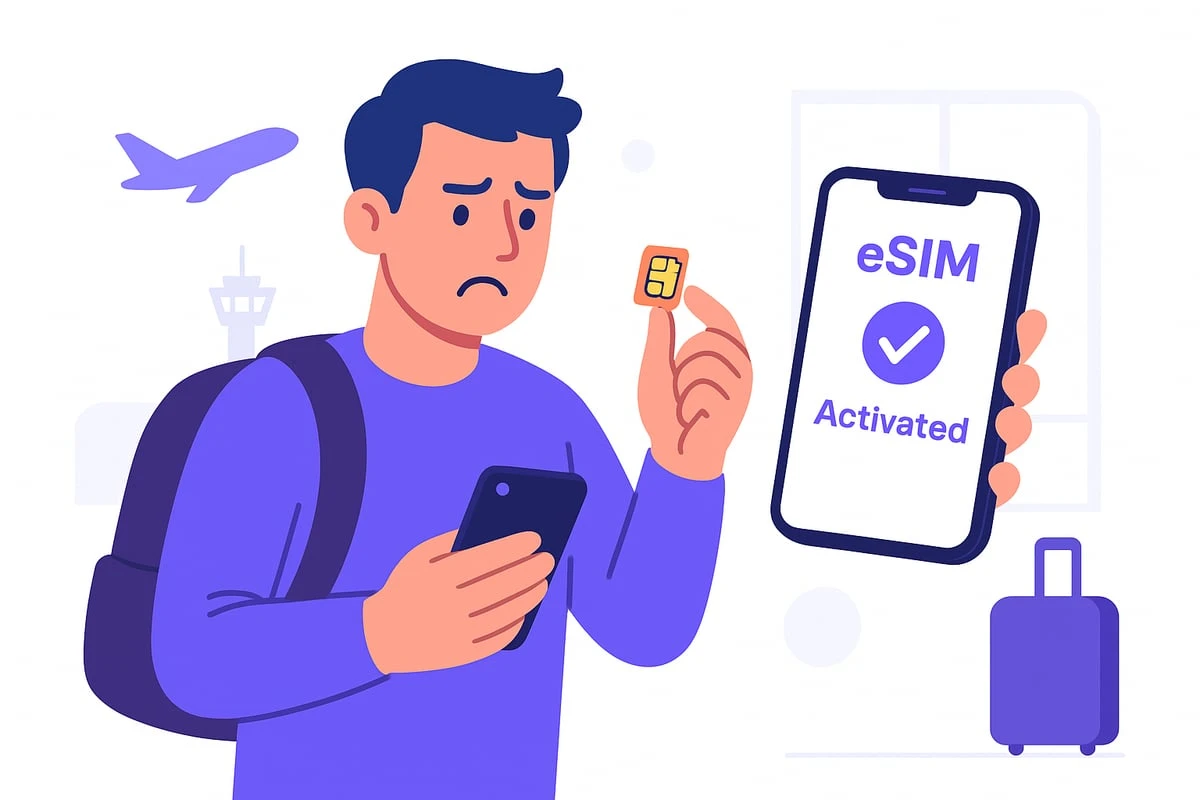
Emergency Connectivity With eSIM
An eSIM is a phone’s embedded SIM profile that you download over the internet, then activate on your device. For emergency connectivity, the practical goal is simple: you want your phone to regain service quickly enough to call for help, send SMS, or reach a map and messaging app when you arrive or when a local SIM fails.
In real travel scenarios, the “emergency” moment often happens right after landing, in a hotel with weak Wi‑Fi, or during a transit delay when you need to contact someone. eSIM can help because you can prepare the profile before you leave, then activate it when you have signal. Some plans also support roaming data immediately after activation, which matters when you need to confirm pickup details or locate a clinic.
eSIM does not replace every communication channel. If your phone has no cellular signal at all, or if emergency calling is restricted by local rules, you may still rely on Wi‑Fi calling, SMS over Wi‑Fi (where supported), or offline maps until service returns. That’s why planning has to cover both the SIM profile and the device’s emergency features.
Main Problems And Pain Points
People often assume eSIM activation is instant everywhere, then get stuck when the phone needs a data connection to download the profile or when the activation window is tied to a specific region. The profile download step can fail on captive hotel Wi‑Fi, and it can fail when the phone’s APN settings are not what the carrier expects.
Another common issue is device compatibility. eSIM support depends on the phone model, the region of purchase, and the operating system version. For example, iPhone models that support eSIM in one country may still behave differently with carrier provisioning in another, and Android devices vary widely in how they handle multiple profiles. On my own checklist, I look for the exact menu path in Settings and the eSIM status screen; if the menu is missing, the plan won’t matter.
Coverage expectations also get misread. Many eSIM providers resell roaming access from multiple mobile network operators, so coverage can differ by city, highway, and indoor locations. A plan that works in the airport may not work in a rural area, and a plan that shows “LTE” at street level can drop to “no service” inside buildings.
Finally, emergency calling behavior varies. In many places, emergency numbers like 112 or 911 route through local networks, but the ability to place an emergency call can depend on whether the device has a registered network and whether the SIM profile is active. If you activate the eSIM after you already need help, you may lose time.
Solutions And Advice
Pre-Trip Setup And Checks
Start with a device check before you buy a plan. Confirm your phone supports eSIM and that you can add a new cellular plan in Settings. On iOS, the path is typically Settings > Cellular > Add Cellular Plan; on Android it varies by manufacturer. If you see the option to add an eSIM profile, you’re closer to being ready than if you only see “SIM card” settings.
Then test the workflow using a non-emergency plan if you can. Download and activate a profile while you still have stable Wi‑Fi and time to troubleshoot. I’ve seen activation fail because the phone was on a VPN or because the Wi‑Fi network blocked the carrier’s provisioning domain; checking the eSIM status page after activation helps you catch that early. Keep a screenshot of the carrier name and the plan’s activation instructions in case you need to repeat steps later.
Plan for offline contingencies. Save emergency numbers for your destination (for example, 112 in many European countries) and store key contacts in your phone. Offline maps can reduce dependence on data when signal is weak, and offline messaging drafts can help you prepare what you’ll send once service returns.
Choose A Plan With Real Coverage
Read the plan’s coverage description in plain terms: which countries it supports, whether it includes voice/SMS, and whether it’s data-only. Some eSIM plans focus on data; others include SMS and calls. For emergency use, SMS can be more reliable than data in low-bandwidth conditions, but it still depends on the carrier’s roaming agreements.
Look for details about network technology (LTE/5G) and any “fair use” limits. Many travel eSIM plans throttle after a data threshold, and throttling can affect map loading or video calls. If your goal is messaging and navigation, you can plan around smaller data needs, but if you expect telehealth video or large attachments, you need a higher allowance.
Also check activation timing. Some plans require you to activate within a certain window after purchase, and some require you to activate while you are in the destination country. If activation must happen after arrival, you should still have a backup method for the first hours, such as hotel Wi‑Fi or a friend’s Wi‑Fi hotspot.
Activate Correctly At Arrival
When you land, activate the eSIM using the carrier’s instructions and then confirm registration. On many phones, you can verify by checking the cellular status indicator and the eSIM label in Settings. If the phone shows “No service,” wait a few minutes and toggle airplane mode once; repeated toggles can help the device re-register, though it rarely fixes a coverage gap.
Set the eSIM as the active line for data and, if available, for calls and SMS. Some phones default to the last-used SIM profile, which can cause confusion when you think you activated the eSIM but your calls still route through the old SIM. On Android, I’ve seen this happen after an OS update; checking the “Preferred SIM for calls” and “Preferred SIM for data” fields avoids that.
If you rely on Wi‑Fi calling, test it before you need it. Wi‑Fi calling depends on the carrier and sometimes on a prior registration step. If Wi‑Fi calling is enabled, it can bridge the gap when cellular signal is weak, but it does not replace cellular emergency calling in every jurisdiction.
Know The Limits During Outages
eSIM does not guarantee service during network outages. If the roaming partner’s network is down, your phone may show “Emergency calls only” or no service at all. In that case, your best options are Wi‑Fi calling (if configured), SMS via Wi‑Fi (where supported), or contacting services through a trusted third party on Wi‑Fi.
Battery and signal management matter. A phone searching for signal drains power quickly, especially in basements and rural valleys. If you’re waiting for service to return, switching to airplane mode and then back after a short interval can reduce drain, though it also delays registration.
Keep your phone updated enough to support eSIM features. For example, iOS 17.x and later include improvements to cellular behavior on some models, and Android updates often adjust SIM management. If you’re traveling soon, update while you’re on stable Wi‑Fi so you don’t start the trip with a half-finished setup.
Case Examples
Airport Arrival With No Local SIM
An anonymized traveler lands in a country where they planned to buy a local SIM but the shop closes early. They had already downloaded an eSIM profile to their phone before departure and activated it after landing. After activation, they confirm the eSIM is the active data line, then send an SMS to a hotel contact to confirm check-in. The traveler still uses offline maps for the first route because indoor signal is weak, and they switch to cellular data only after the phone registers LTE.
The key lesson is timing. The traveler’s success depends on having the profile ready before leaving and on verifying registration after activation, not on the eSIM being “magic” once they arrive.
Travel Delay And Carrier Confusion
An anonymized traveler experiences a flight delay and needs to contact a family member repeatedly. They activate an eSIM profile but discover their calls still go through the original SIM because the phone’s preferred line settings were not changed. After switching the preferred line for calls and SMS, they can place calls and send messages. Data works immediately, but voice required a second settings check.
This scenario shows why you should verify both data and voice/SMS behavior after activation, not only the presence of a data connection.
Comparison Checklist For eSIM
| Decision Factor | Data-Only eSIM | Data + SMS | Data + Calls/SMS |
|---|---|---|---|
| Emergency messaging | Works via apps on data; SMS not included | SMS works if roaming supports it | SMS and calls work if roaming supports it |
| Setup complexity | Often simpler; fewer carrier services | Requires correct SMS settings | Requires correct voice/SMS line selection |
| Typical use | Maps, messaging apps, email | Contacting people without data-heavy apps | Calling services and family directly |
| Where it can fail | No data means no app messaging | SMS may not route if roaming blocks it | Voice may require line preference changes |
Step-by-step checklist for emergency readiness:
- Confirm your phone supports eSIM and can add a new cellular plan in Settings.
- Download the eSIM profile before travel using stable Wi‑Fi; record the activation steps.
- After activation, verify cellular registration and confirm the eSIM is the preferred line for data and calls/SMS.
- Test one low-stakes action: send an SMS or place a short call to a trusted contact.
- Save emergency numbers and key contacts offline, and keep offline maps available.
- Plan a fallback for the first hours: hotel Wi‑Fi, a friend’s hotspot, or a local contact who can receive calls.
Common Mistakes
Buying an eSIM plan without checking whether it includes SMS or voice leads to confusion during urgent moments. Data-only plans can still help with messaging apps, but they fail when the phone has no data connection or when the other person cannot use the same app.
Activating the profile but not changing the phone’s preferred line settings causes calls and texts to route through the wrong SIM. This mistake often appears after travel because the phone remembers the last used line, not the one you intended for emergencies.
Relying on airport Wi‑Fi to download the profile can fail due to captive portals. If the provisioning step needs internet access to a carrier domain, a hotel or airport login page can block it, and the phone may show a vague “activation failed” message.
Skipping a test call or test SMS increases the chance that you discover problems only when you need help. A 30-second test to a trusted contact catches issues like incorrect line selection, missing SMS support, or a plan that only activates in a specific region.
FAQ
Do eSIMs work for emergency calls?
Emergency calling depends on local rules and whether your phone has registered to a cellular network with an active SIM profile. After activation, test that your phone can place an emergency call where permitted, and keep emergency numbers saved offline.
Can I activate an eSIM before I travel?
Many eSIM plans let you download the profile before departure, but activation timing varies by provider and destination. Follow the plan instructions and verify the eSIM status screen shows it is ready to use.
What happens if my phone has no signal?
If there is no cellular coverage from the roaming partner, the eSIM cannot create signal. In that case, Wi‑Fi calling (if configured) and offline tools become your fallback until cellular service returns.
Will an eSIM replace a local SIM for voice and SMS?
Some eSIM plans include voice and SMS, while others are data-only. Check the plan details for calls and SMS support and confirm your phone’s preferred line settings after activation.
How do I know my eSIM is active?
Check Settings for the eSIM label and cellular status, then confirm the phone shows a registered network and that data works. A short test SMS or call to a trusted contact confirms voice/SMS routing.
Author's Insight
Emergency connectivity with eSIM depends less on the label “eSIM” and more on the full chain: device support, profile download, activation timing, network registration, and the phone’s preferred line settings. Providers often describe coverage at a country level, but real performance varies by operator and indoor signal conditions. A practical approach treats eSIM like a preconfigured access method that still needs verification steps before you rely on it.
For readers planning health-related travel, the safest pattern is to prepare the eSIM profile before leaving, test one communication method, and keep offline contact information and emergency numbers. If you travel with a companion, coordinate so at least one person has working connectivity and can contact services while the other focuses on immediate needs.
Key Takeaways
- Prepare the eSIM profile before travel and verify activation by checking cellular registration and preferred line settings.
- Choose a plan that matches your emergency needs: data-only versus SMS versus calls.
- Coverage varies by roaming partner and location; indoor signal can differ from airport signal.
- Test a low-stakes SMS or call before you need it, and keep offline emergency numbers and contacts.
- Plan a fallback for the first hours using Wi‑Fi calling (if configured) and offline tools.